Linux Desktop Environments Compared: Why KDE Plasma Wins
One of Linux's greatest strengths - and occasional sources of confusion for newcomers - is that the graphical interface you see every day is completely separate from the operating system itself. On Windows, you get one desktop. On macOS, you get one desktop. On Linux, you choose.
These graphical interfaces are called desktop environments, and there are many of them. Each has a distinct philosophy, aesthetic, and set of trade-offs. This is genuinely one of Linux's superpowers, but it means you have to make a decision that Windows and Mac users never face.
Let's look at the major contenders and then make the case for why KDE Plasma is the best choice for most people.
The Main Contenders
GNOME
GNOME is the default desktop on Ubuntu, Fedora, and many other major distributions. It's modern, clean, and opinionated - which means it looks great out of the box but can frustrate users who want to customize it.
GNOME's design philosophy is built around minimalism and focus. It has no taskbar by default, relying instead on an "Activities" overview that you activate by pressing the Super key (the Windows key). All your windows, workspaces, and app shortcuts live in this overview mode. For some people, this is elegant and distraction-free. For many others - especially those coming from Windows - it feels alien and inefficient.
GNOME also has a significant resource footprint. It's heavier than most alternatives, which can be felt on older hardware.
The extension system allows customization, but extensions are notoriously fragile - they often break with GNOME updates, leaving users to wait for extension maintainers to catch up. Customization that should be built-in requires extensions, and then those extensions break. It's a recurring frustration.
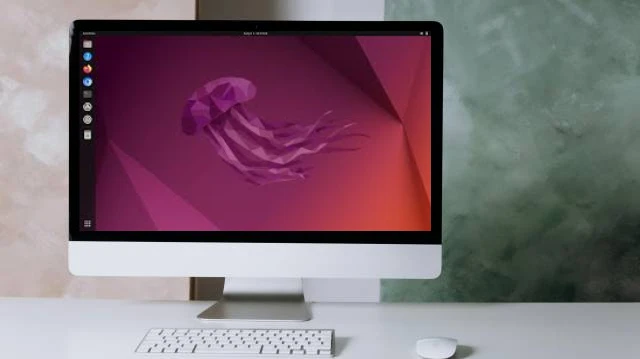
GNOME is polished and has a clear vision. But that vision assumes you'll work the way its designers intended. If you don't, it fights you.
XFCE
XFCE is the lightweight champion. It's fast, stable, and runs beautifully on hardware that would make GNOME and KDE wheeze. If you have a computer from 2010 with 2GB of RAM, XFCE is the answer.
The trade-off is that XFCE looks and feels old. It's functional and reliable, but it doesn't feel modern. The default appearance is fairly plain, and while customization is possible, it requires more effort than other environments.
XFCE is a great choice for specific situations - old hardware, servers with GUIs, or users who genuinely prioritize speed and stability above everything else. For everyday use on reasonably modern hardware, though, you're sacrificing too much polish.
Cinnamon
Cinnamon is the default desktop of Linux Mint, and it was built specifically to feel familiar to Windows users. It has a traditional taskbar, a Start-menu-style application launcher, and a system tray in the corner. If your goal is "looks as much like Windows as possible," Cinnamon is excellent at that.
It's stable, well-maintained, and reasonably fast. Linux Mint with Cinnamon is frequently recommended as the best Linux for absolute beginners, and that recommendation isn't wrong.
But Cinnamon's strength is also its weakness. It's designed to look like Windows, which means it's somewhat conservative. Customization exists but is less deep than KDE. The design language feels a bit dated compared to modern alternatives. It's safe, comfortable, and functional - but not particularly exciting.
Others Worth Mentioning
MATE is a continuation of the older GNOME 2 interface, beloved by users who felt GNOME 3 abandoned them. It's stable and traditional but showing its age.
LXQt and LXDE are ultra-lightweight options for very old hardware, even lighter than XFCE.
Budgie is a newer, sleeker desktop that prioritizes aesthetics while staying relatively lightweight. It's interesting but not widely used enough to have a massive support community.
Why KDE Plasma Is the Winner
Now let's talk about why KDE Plasma beats them all for most users.
It's Stunningly Beautiful
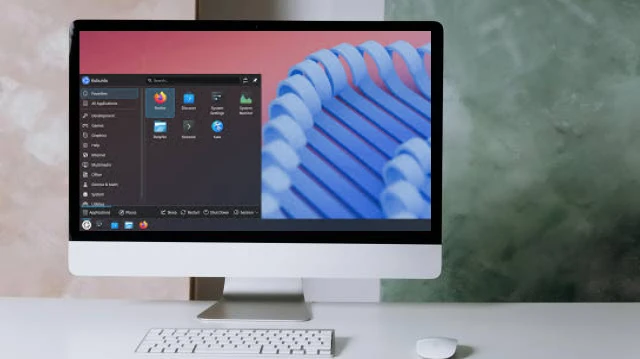
KDE Plasma is simply one of the most visually impressive desktop environments available on any operating system, including Windows and macOS. The default theme is polished and modern, animations are smooth and tasteful, and the overall aesthetic is contemporary without being trendy.
More importantly, you can make it look exactly how you want. Global themes, color schemes, icon packs, widget styles, window decorations - every visual element can be changed through a comprehensive but accessible System Settings panel. This isn't about tweaking config files; it's point-and-click customization taken to its logical extreme.
It's Fast - Genuinely Fast
KDE Plasma has invested heavily in performance over the past several years, and it shows. The KDE team has made reducing memory usage and startup time a priority, and the results are real. On modern hardware, Plasma launches applications quickly, animations run without stutter, and the system stays responsive even under load.
This is a notable achievement because feature-rich desktop environments often feel heavy. KDE manages to be both deeply featured and light on its feet.
Customization Without Breaking
Unlike GNOME's extension system, KDE's customization is built directly into the desktop. Want to move the taskbar to the top? Right-click, drag. Want to add widgets to your desktop? Right-click, add widgets. Want to change how windows look and behave? System Settings has panels for all of it.
Crucially, none of these customizations break when you update the system. Because the configuration lives within KDE's own framework rather than third-party extensions, updates don't suddenly leave you with a broken desktop.
Familiar for Windows Users
The default KDE Plasma layout - taskbar at the bottom, application menu in the corner, system tray on the right, desktop icons - is immediately recognizable to anyone coming from Windows. You don't have to relearn basic navigation. The muscle memory transfers.
This isn't an accident. KDE's designers understand that most Linux newcomers are switching from Windows, and they've made the transition as comfortable as possible without sacrificing their own design vision.
The KDE Application Ecosystem
KDE comes with an ecosystem of applications that integrate tightly with the desktop. Dolphin (file manager), Konsole (terminal), Gwenview (image viewer), Okular (document viewer), Spectacle (screenshot tool), KDE Connect (link your phone to your desktop) - these apps share a consistent design language and integrate with each other in useful ways.
KDE Connect in particular is worth singling out. It connects your Android phone to your Linux desktop, allowing you to see phone notifications on your PC, transfer files, use your phone as a remote control, and even reply to messages directly from your computer. It's the kind of feature that makes you wonder why it's not on other platforms.
The Verdict
KDE Plasma is the best desktop environment for most Linux users. It combines:
- Outstanding visual quality
- Deep, stable customization
- Excellent performance
- A familiar layout for Windows switchers
- A rich application ecosystem
GNOME is its closest competitor, and it has a devoted user base with good reasons. But GNOME's rigidity, its fragile extension system, and its somewhat steep learning curve for Windows switchers put it behind KDE for general-purpose use.
XFCE and Cinnamon are excellent for their specific use cases - old hardware and Windows familiarity, respectively - but neither can match KDE's combination of power and polish.
If you want a desktop that does exactly what you tell it, looks exactly how you want, and gets out of your way while doing so - KDE Plasma is the answer.
Try Kubuntu, spend a week with it, and then try to go back to anything else. It's difficult.