How to Create Professional Invoices Without Accounting Software
You just landed your first freelance client. Or maybe you're a small business owner who needs to bill a customer. You need an invoice-professional, accurate, and fast. Your options? QuickBooks ($15/month minimum), FreshBooks ($17/month), or wrestling with Excel templates that never look quite right.
For a one-person operation or occasional billing, subscription accounting software is overkill. You're paying $200+/year to send 12 invoices. And those "free" invoice templates you found online? They add watermarks, have broken formulas, or look like they're from 2003.
The Invoice Problem
Creating professional invoices requires:
- Accurate calculations (subtotals, tax, totals)
- Clean design (your brand looks legitimate)
- Proper formatting (itemized lists, dates, payment terms)
- PDF output (universal compatibility)
- Record keeping (tracking what's been sent)
Excel can calculate but looks amateur. Word can format but breaks when you edit. PDF editors are expensive and clunky.
The Solution: Browser-Based Professional Invoicing
The Invoice Generator creates stunning, professional invoices in seconds. Multiple templates. Automatic calculations. Print to PDF instantly. All in your browser-no signup, no subscription, no data collection.
Why This Beats Accounting Software
Zero Cost: QuickBooks starts at $15/month. FreshBooks at $17. Wave is "free" but pushes paid add-ons. This tool is actually free-no upsells, no limits.
No Account Required: No "create account to save your invoice." No email verification. No password to forget. Just open and create.
Privacy Protected: Your client data and financial information never leaves your browser. No cloud storage. No data mining. No "we'll analyze your invoices to sell you loans."
Instant PDF: Use your browser's print dialog to save as PDF. No "export" button that requires Pro version. No quality loss. No weird formatting.
Professional Templates: Four distinct designs from modern to classic. Your invoices look like they came from a design agency, not a spreadsheet.
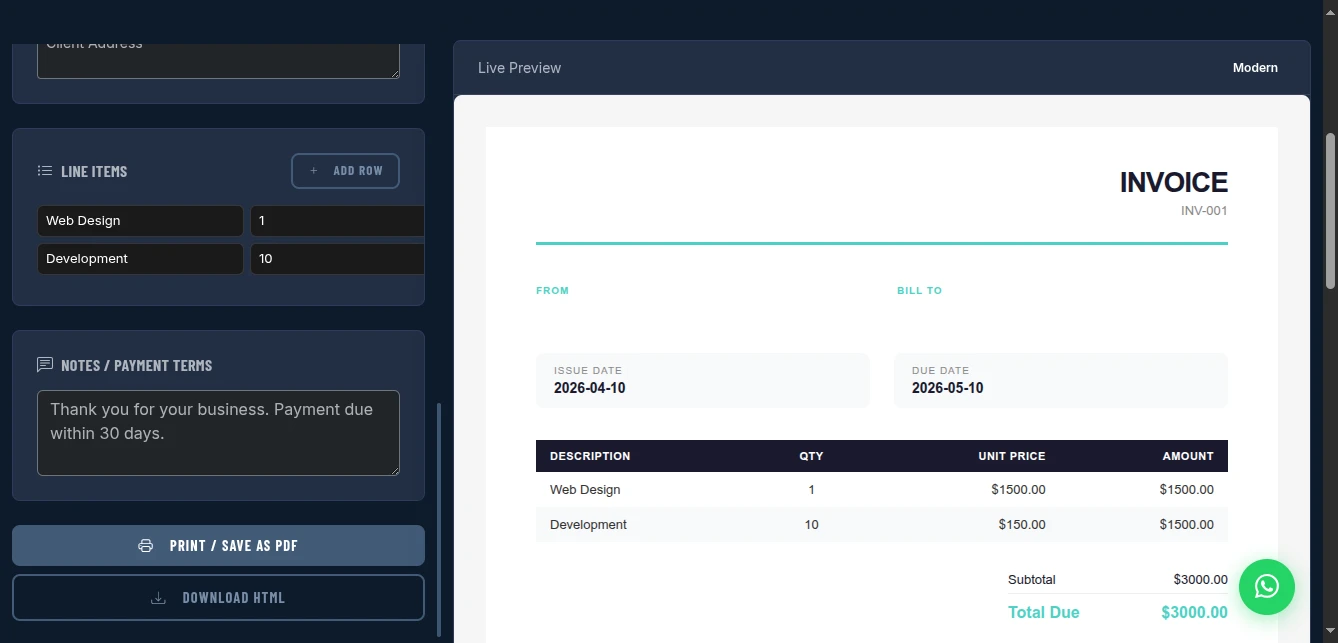
Template Options for Every Business
Modern: Clean lines, subtle colors, contemporary typography. Perfect for tech freelancers, designers, and modern agencies.
Classic: Traditional layout, conservative styling. Ideal for lawyers, accountants, consultants, and established businesses.
Bold: Strong visual hierarchy, distinctive design. Great for creative agencies, photographers, and brands wanting to stand out.
Retro: Unique personality, vintage aesthetics. Perfect for artisan businesses, vintage shops, and distinctive brands.
All templates include proper invoice structure: your info, client info, line items, calculations, and payment details.
Key Features That Get You Paid
Automatic Calculations
- Line totals: Quantity × Unit Price, calculated instantly
- Subtotal: Sum of all line items
- Tax: Configurable percentage, calculated automatically
- Total Due: Final amount with currency formatting
No broken Excel formulas. No manual math errors. No "oops, I undercharged by $50."
Flexible Line Items
Add unlimited line items with:
- Description (what you did)
- Quantity (hours, units, days)
- Unit price (your rate)
- Automatic total calculation
Pro tip: Be specific. "Website homepage design - 5 hours @ $100/hr" beats "Web work."
Customizable Business Details
- Your logo: Upload and display your brand
- Business info: Name, email, address, phone, tax ID
- Client info: Who you're billing
- Invoice metadata: Number, dates, currency
Payment Terms
Clear fields for:
- Due date (calculated from issue date)
- Payment methods accepted
- Bank details for transfers
- Late payment policies
How to Use It: From Blank to Paid
Step 1: Choose Your Template
Select based on your business personality:
- Tech/Creative → Modern or Bold
- Professional services → Classic
- Unique/Artisan → Retro
Step 2: Add Your Business Details
Fill in the "From" section:
- Your business name
- Email address
- Physical address (optional but adds legitimacy)
- Phone number
- Tax ID / VAT number (if applicable)
Upload your logo for instant brand recognition.
Step 3: Add Client Information
The "Bill To" section:
- Client company name
- Contact person's name
- Client address
- Client email
Step 4: Set Invoice Details
- Invoice Number: Use your numbering system (INV-001, 2024-001, etc.)
- Issue Date: Today (or backdate if needed)
- Due Date: Net 15, Net 30, or specific date
- Currency: USD, EUR, GBP, or any symbol
Step 5: Add Line Items
Click "Add Row" for each service/product:
- Description: What you provided
- Quantity: How many (hours, units, etc.)
- Unit Price: Your rate
The tool calculates totals automatically. Add as many rows as needed.
Step 6: Set Tax Rate
Enter your tax percentage (0 for tax-free, 10 for 10%, etc.). Tax calculates automatically on the subtotal.
Step 7: Preview and Print
The live preview shows exactly how your invoice looks. Once satisfied:
- Click "Print / Save as PDF"
- Your browser's print dialog opens
- Destination: "Save as PDF"
- (Optional) Enable "Background graphics" for full color
- Save
Pro tip: Print to PDF ensures universal compatibility. Every device can open PDFs. They look identical everywhere.
Privacy and Security
No Server Processing: Your invoice data never leaves your computer. Client names, amounts, business details-all stay local.
No Data Storage: Nothing is saved to cloud servers. No database breaches to worry about. No "we experienced unauthorized access to invoice data" emails.
No Analytics: No tracking scripts monitoring what you create. No "we noticed you invoice $5K monthly, here's a loan offer."
HTTPS Secure: The tool loads over encrypted connection. No man-in-the-middle attacks on the code.
Comparison with Alternatives
| Feature | QuickBooks | Excel Template | Word Template | This Tool |
|---|---|---|---|---|
| Cost | $15+/mo | Free | Free | Free |
| Calculations | Yes | Broken often | Manual | Yes, automatic |
| Design | Generic | Amateur | Basic | Professional |
| PDF Export | Yes | Clunky | Clunky | One-click |
| Privacy | Cloud | Local | Local | Browser-only |
| Templates | Limited | Few | Few | 4+ designs |
| Ease of Use | Complex | Moderate | Moderate | Simple |
Real-World Use Cases
The Freelance Designer: Creates Modern template invoices for each project. PDF attaches to email. Clients comment on how professional the invoices look. Payment speed improved.
The Consultant: Uses Classic template for conservative client base. Includes detailed line items for each consulting day. Tax calculation handles VAT automatically.
The Small Agency: Bold template with agency logo. Invoices include multiple line items for different team members' time. Clean presentation reinforces premium positioning.
The Contractor: Retro template matching the artisan brand. Itemizes materials and labor separately. Due date clearly marked to encourage timely payment.
Pro Tips for Faster Payment
Clear Due Dates: "Due on receipt" gets ignored. "Due March 15, 2024" creates urgency.
Specific Descriptions: Vague line items get questioned. Detailed descriptions get paid without back-and-forth.
Professional Presentation: A well-designed invoice signals you run a real business. Clients take you more seriously.
Payment Methods: List accepted methods clearly. "Pay via bank transfer: Account: XXXX" removes friction.
Late Fees: Include policy like "Late payments subject to 1.5% monthly fee." Deters delays.
Numbering System: Use sequential numbers (INV-001, INV-002). Looks organized, helps tracking.
Thank You: Add "Thank you for your business" at bottom. Gratitude increases payment speed.
Limitations and Workarounds
No Automatic Saving: The tool doesn't save to a database (privacy feature). Workaround: Download the PDF immediately. Keep organized folders on your computer.
No Multi-Currency: Shows one currency symbol throughout. Workaround: Create separate invoices for different currencies, or note exchange rates in descriptions.
No Recurring Invoices: Each invoice is created individually. Workaround: For regular clients, keep a template invoice file and duplicate/edit monthly.
No Payment Processing: Doesn't accept credit cards directly. Workaround: Include payment links (Stripe, PayPal) in the notes section, or bank transfer details.
When to Upgrade to Accounting Software
This tool is perfect for:
- Freelancers with occasional clients
- Small businesses with simple billing
- One-off projects
- Side hustles
Consider QuickBooks/FreshBooks when you need:
- Expense tracking
- Automatic bank reconciliation
- Recurring billing automation
- Multi-user access
- Tax preparation integration
- Inventory management
For many solo operators, this free tool handles 90% of invoicing needs without the $200+/year cost.
Conclusion
Stop paying monthly fees for basic invoicing. Stop wrestling with broken Excel formulas. Stop sending amateur-looking Word documents that delay payment.
The Invoice Generator gives you professional, calculated, beautiful invoices with one-click PDF export. Completely free. Completely private. Completely in your control.
Professional presentation gets you paid faster. Accurate calculations prevent losses. Privacy protection keeps your data safe.
Create your first professional invoice now - no signup required.