How to Bulk Edit Images Online Without Installing Software
You've got 200 product photos that need resizing. A folder of screenshots that need compression. A batch of social media images that need consistent watermarks. Your options? Spend $20/month on Photoshop, buy expensive batch processing software, or upload everything to some shady "free" online tool that probably steals your images.
The Privacy Problem
Most online image processors upload your files to their servers. That product photo you're editing? It's now on someone else's cloud. Those family pictures? Potentially indexed by search engines. When you're dealing with client work, proprietary product shots, or personal photos, this is unacceptable.
Photoshop and GIMP can batch process, but they're complex, expensive (or bloated), and require installation. You just want to resize some images, not learn a professional design suite.
The Solution: Browser-Based Batch Processing
The Bulk Image Processor is a professional-grade batch editing engine that runs entirely in your browser. No installation. No uploads. No server processing. Your images never leave your device.
Why This Approach Is Better
Privacy-First Architecture: All processing happens inside your browser's sandbox using WebAssembly and Canvas APIs. We literally cannot see your images even if we wanted to. Perfect for:
- E-commerce product photos
- Client confidential work
- Personal/family photos
- Proprietary screenshots
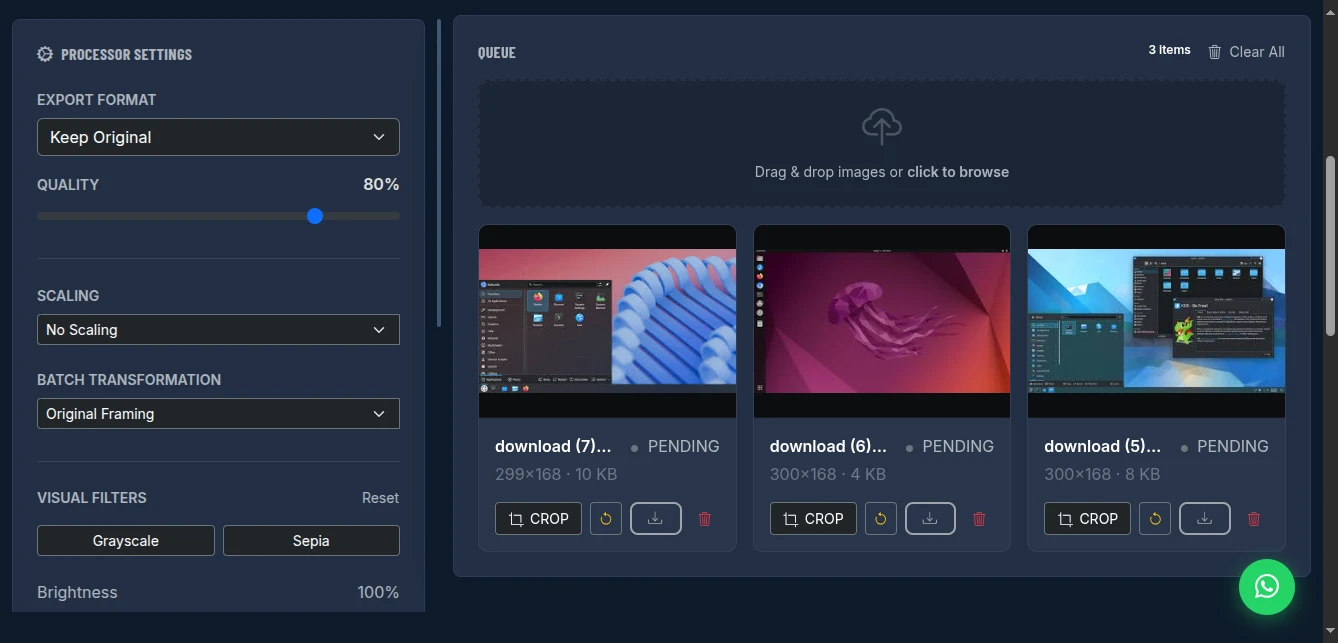
Master Frame Technology: Set the perfect crop on ONE image, then apply that exact framing (zoom and position) to every other image automatically. Essential for consistent product catalogs.
Zero Cost: No subscription tiers. No "Pro" features locked behind paywalls. Everything is free.
Key Features That Save Hours
1. Smart Batch Transformation
Choose from:
- Original Framing: Keep images as-is
- Smart Crop: Automatically center on detected subjects
- Master Frame: Copy framing from your reference image
2. Visual Filters & Adjustments
- Brightness and contrast controls
- Grayscale and sepia filters
- Quality compression (set exact percentage)
- Format conversion (WebP, JPEG, PNG)
3. Professional Watermarking
Add text watermarks with:
- Custom fill and stroke colors
- Position control (corners or center)
- Adjustable opacity
- Clean typography
4. Flexible Export Options
Download individual files or grab everything as a ZIP archive. The "Strip" view lets you manually save specific images if you don't need the whole batch.
How to Use It: Complete Workflow
Step 1: Upload Your Images
Drag and drop your entire folder, or click to browse. The tool accepts any common image format. You can add more images at any time-even while processing.
Step 2: Set Your Master Frame (Optional)
If you need consistent framing across all images:
- Click "Crop" on your first image
- Adjust the zoom and position perfectly
- Select "Master Frame" mode
- This framing automatically applies to every image in the queue
Step 3: Configure Global Settings
Set your export preferences:
- Format: WebP for web (smaller files), JPEG for compatibility, PNG for transparency
- Quality: 80% is the sweet spot for web images
- Scaling: Resize to specific pixel dimensions or percentage
- Filters: Apply grayscale, sepia, or brightness adjustments
Step 4: Add Watermark (Optional)
Enter your watermark text, choose colors, and set position. The watermark applies to every image in the batch.
Step 5: Process and Download
Click "Process Batch." The tool processes everything locally-speed depends on your device's power, not internet speed. Once done, download as ZIP or save individual images.
Real-World Use Cases
E-commerce Sellers: Batch resize 500 product photos to consistent dimensions, add your store watermark, and compress for web-all in under 5 minutes.
Social Media Managers: Convert HEIC iPhone photos to web-ready JPEGs, apply consistent filters, and resize for different platforms (Instagram, Twitter, LinkedIn).
Developers: Compress screenshot folders for documentation, convert to WebP for faster loading, resize for responsive breakpoints.
Photographers: Create web galleries from RAW exports, add copyright watermarks, generate thumbnails.
Technical Advantages
No File Size Limits: Process gigabytes of images if your device can handle it. Not restricted by upload quotas.
Offline Capable: Once loaded, the tool works without internet. Process images on planes, in remote locations, or during outages.
Memory Efficient: Uses streaming processing for large batches. Won't crash your browser with 1000+ images.
Format Support: Handles JPEG, PNG, WebP, GIF, BMP, TIFF, and more.
Comparison with Alternatives
| Feature | Photoshop | GIMP | Online Tools | This Tool |
|---|---|---|---|---|
| Cost | $20/month | Free | Freemium | Free |
| Installation | Required | Required | None | None |
| Privacy | Local | Local | Server upload | Browser-only |
| Batch Resize | Yes | Yes | Limited | Yes |
| Watermark | Yes | Yes | Paid tiers | Yes |
| Master Frame | No | No | No | Yes |
| Ease of Use | Complex | Complex | Simple | Simple |
Pro Tips for Best Results
For Product Photos: Use "Master Frame" mode with a small zoom (110-120%) to eliminate background inconsistencies while keeping products centered.
For Social Media: Export as WebP at 85% quality. Files are 30-50% smaller than JPEG with no visible quality loss.
For Archives: Keep original quality at 95%+ and PNG format. Use this for master copies, then create compressed versions for web.
For Watermarks: Use a subtle grey stroke with 50% opacity. Visible enough to protect, subtle enough to not distract.
Conclusion
Stop uploading your private images to unknown servers. Stop paying Adobe's subscription fees for simple batch operations. The Bulk Image Processor gives you professional batch editing capabilities with complete privacy-free forever, no strings attached.
Whether you're processing 10 images or 10,000, this browser-based engine handles it efficiently while keeping your data secure on your own device.
Start batch processing your images now - no signup required.