Getting Started with Linux: A Friendly Guide for Everyone
Linux has a reputation. People hear the word and picture a bearded developer furiously typing cryptic commands into a black terminal window. But that image is outdated - and honestly, it was never entirely true to begin with. Today, Linux is polished, fast, beginner-friendly, and used by millions of everyday people around the world. If you've been curious but intimidated, this guide is for you.
Why Linux? What's in It for You?
Before we talk about how to use Linux, let's talk about why you might want to.
Linux is free - not just in price, but in freedom. You're not locked into a subscription, you don't get forced updates at inconvenient times, and you're not tracked by a corporation trying to sell you ads. Your computer is yours again.
Linux is also fast. Even older hardware that struggles under Windows 10 or 11 can run Linux smoothly. If you have a laptop collecting dust because it "got slow," Linux can often breathe new life into it.
And it's secure. Linux has a fundamentally different security model than Windows, and it benefits from a massive community of developers who catch and patch vulnerabilities quickly.
Which Linux Should I Use? Start with Kubuntu
There are hundreds of Linux distributions ("distros"), and choosing between them can feel overwhelming. But here's the honest answer for most newcomers: start with Kubuntu.
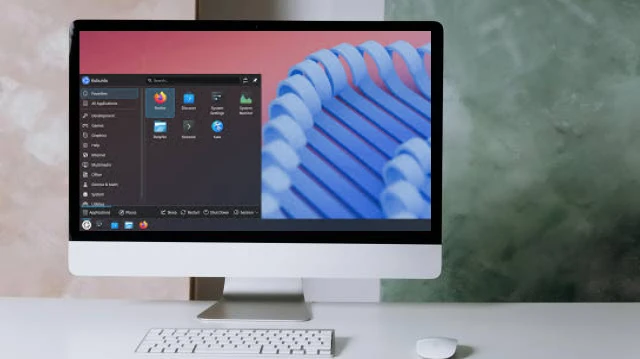
Kubuntu is an official flavour of Ubuntu - one of the most popular and well-supported Linux distributions in the world - but instead of Ubuntu's default GNOME desktop, Kubuntu uses the KDE Plasma desktop environment. KDE Plasma is stunning, highly customizable, and - importantly - it feels familiar. If you're coming from Windows, the taskbar at the bottom, the Start-menu-style launcher, and the overall layout will feel comfortable from day one.
Kubuntu also benefits from Ubuntu's enormous software ecosystem. Almost every Linux tutorial you find online will work on Kubuntu. Getting help is easy because the community is enormous.
You can download Kubuntu from kubuntu.org and install it using a simple USB drive. The installer walks you through everything step by step, including the option to install it alongside Windows if you're not ready to fully commit.
Getting Around: The File Manager
Once you're up and running, one of the first things you'll want to do is manage your files. Kubuntu comes with Dolphin, one of the best file managers on any operating system.
Dolphin works exactly like Windows Explorer or macOS Finder. You can browse folders, create new ones, rename files, and drag things around. But it also has a few tricks up its sleeve that you might not expect.
Copying and pasting files in Dolphin is as easy as it is on Windows:
- Select a file or folder by clicking on it
- Press Ctrl+C to copy (or Ctrl+X to cut)
- Navigate to where you want to paste it
- Press Ctrl+V to paste
You can also right-click on any file or folder to get a context menu with options like Copy, Paste, Rename, Compress (zip), and more. Dolphin also supports tabs - just like a web browser - so you can have multiple folders open at once and drag files between them. It's genuinely a pleasure to use.
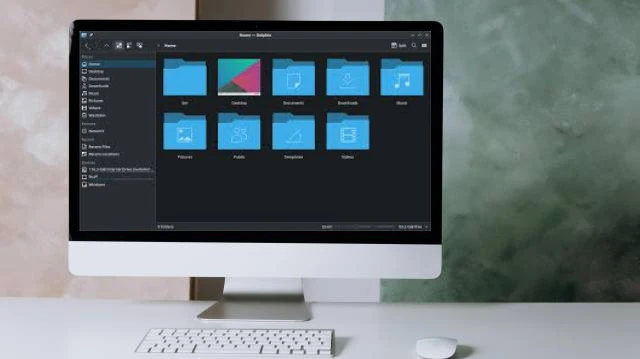
One feature that Windows users often wish they had: split view. Click View → Split View and Dolphin shows two panels side by side. Moving files between two folders becomes a simple drag and drop. No more awkward window juggling.
Browsing the Web: Chrome on Linux
Good news - Google Chrome is available on Linux and works exactly the same as it does on Windows or macOS. You can download it directly from google.com/chrome, and the installation process is straightforward.
If you prefer, Mozilla Firefox comes pre-installed with most Linux distributions including Kubuntu, and it's an excellent browser. But if Chrome is your preference, there's no reason to change your habits.
Once installed, all your bookmarks, extensions, passwords, and settings sync through your Google account just as they always have. The transition is seamless.
Keeping Your System Updated
One of the best habits you can develop on Linux is keeping your system up to date. Unlike Windows, Linux updates are generally fast, non-disruptive, and don't require endless reboots.
You can update your entire system - including all installed software - with two simple commands in the terminal:
sudo apt update
sudo apt upgrade
The first command checks for available updates. The second installs them. That's it. You'll be prompted for your password (the same one you set during installation), and then the updates happen.
You only need to run these occasionally - perhaps once a week or whenever you think of it. Many Linux users set a reminder and keep their system fresh with these two commands.
If you'd prefer to avoid the terminal entirely, Kubuntu also includes a graphical Software Center where you can browse, install, and update software with clicks rather than commands. But once you see how fast those two commands work, you might find yourself preferring them.
Essential GUI Applications
Linux has excellent graphical applications for everything you need. Here are a few standouts that you should know about:
Visual Studio Code - One of the world's most popular code editors, made by Microsoft, and fully available on Linux. Whether you're a developer or just want to edit configuration files, VS Code is fast, powerful, and beginner-friendly. You can download it from code.visualstudio.com.
GIMP - The GNU Image Manipulation Program is Linux's answer to Photoshop. It's free, powerful, and capable of professional-quality photo editing, compositing, and graphic design. It has a steeper learning curve than something like Paint.NET, but the ceiling is very high.
Inkscape - A vector graphics editor comparable to Adobe Illustrator. If you work with logos, illustrations, or any kind of scalable artwork, Inkscape is the tool for you. It's completely free and fully open source.
Both GIMP and Inkscape can be installed easily through the Software Center or with a quick terminal command:
sudo apt install gimp inkscapeThe Terminal: Your New Best Friend
Many people are nervous about the terminal, but it's worth giving it a chance. Think of it as a very precise way to tell your computer what to do. You don't need to memorize hundreds of commands - just a handful of useful ones will serve you well day to day.
Here are the basics:
# See what's in your current folder
ls

# Navigate into a folder
cd Documents

# Go back up one level
cd ..

# Create a new folder
mkdir my-new-folder

# Copy a file
cp original.txt copy.txt

# Move or rename a file
mv oldname.txt newname.txt

# Delete a file (careful - no trash bin!)
rm filename.txt
The terminal on Kubuntu is called Konsole, and you can open it from the application menu. Don't be intimidated - start with ls and cd, and build from there. Within a week, you'll wonder how you got along without it.
You're Ready to Begin
Linux isn't a compromise - it's often a straight-up upgrade. It's faster, more secure, more respectful of your privacy, and increasingly easy to use. Kubuntu in particular makes the transition as smooth as possible, with a familiar interface, excellent software, and a vast community ready to help.
The best way to learn Linux is to use it. Install Kubuntu on an old machine, or try it in a virtual machine, or install it alongside Windows. Take it slow. Explore Dolphin, install Chrome, run an update. Each small step builds confidence, and before long you'll feel completely at home.
Welcome to Linux. You're going to like it here.
); ?>